
Make really responsive buttons is not as easy as one might think. In this post we'll walk through the different issues that we, as developers, face when adding buttons to our websites.
TLDR
Here's the final version so you can copy-paste it and adapt to your needs:
.button {
  padding: 1rem 1%;
}

@media (min-width: 768px) {
  .button {
    padding-left: 2%;
    padding-right: 2%;
  }
}
And here's the CSS for the icon:
.icon {
  position: relative;
  top: -1px;
  left: 0;
}
Here's how it looks:
Our Example
Let's start with a simple button with a bit of style (omitted for simplicity):
<button>I'm just a simple button</button>Sizing
Let's add a bit of padding and set its height so it's 2rem tall:
button {
  height: 2rem;
  padding-left: 1rem;
  padding-right: 1rem;
}

<button>I'm just a simple button</button>It looks better now. Let's try putting more than one button:
As you can see, since we set the button's height is set to 2rem, they can't span
multiple lines. We can fix this by setting our button's height dynamically.
The problem we're trying to solve is: given a fixed width for our button; Our solution is: span multiple lines. To simplify our problem, let's just have a single button with a fixed width:
button {
  // ...previous styles
  width: 10rem;
}

<button>I'm just a simple button</button>What's going on is this:
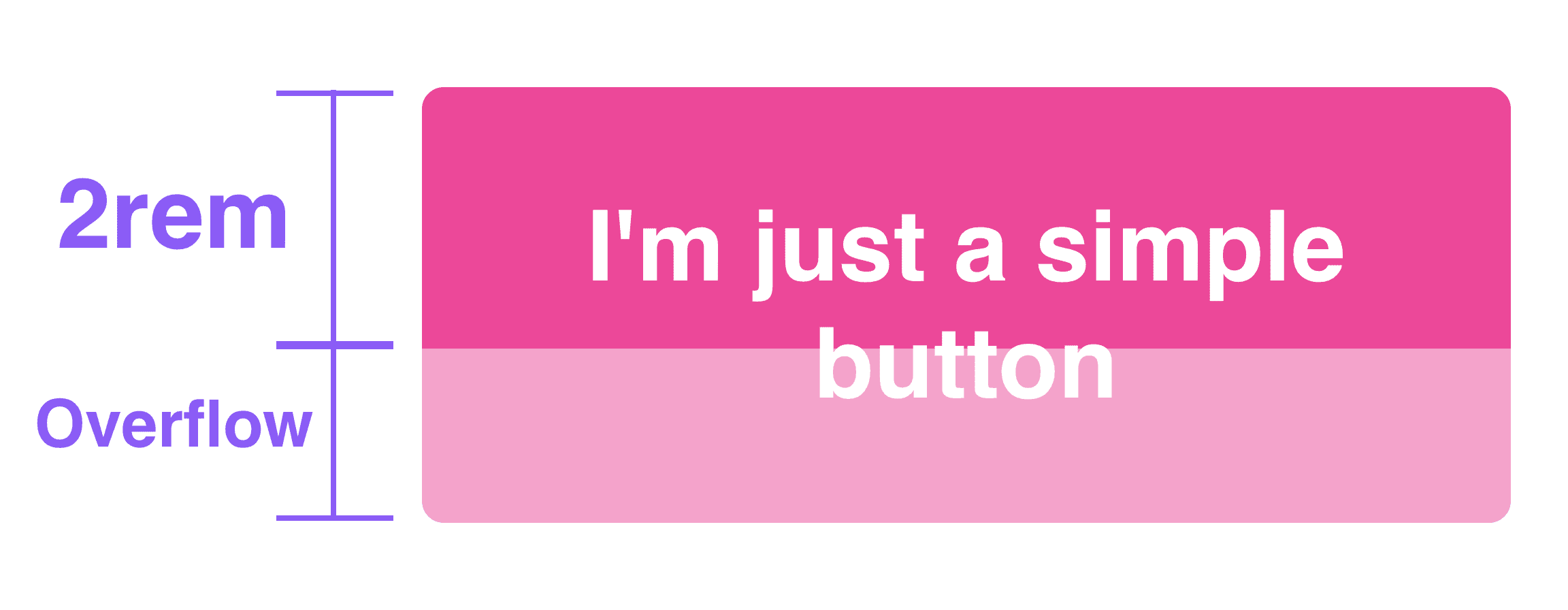
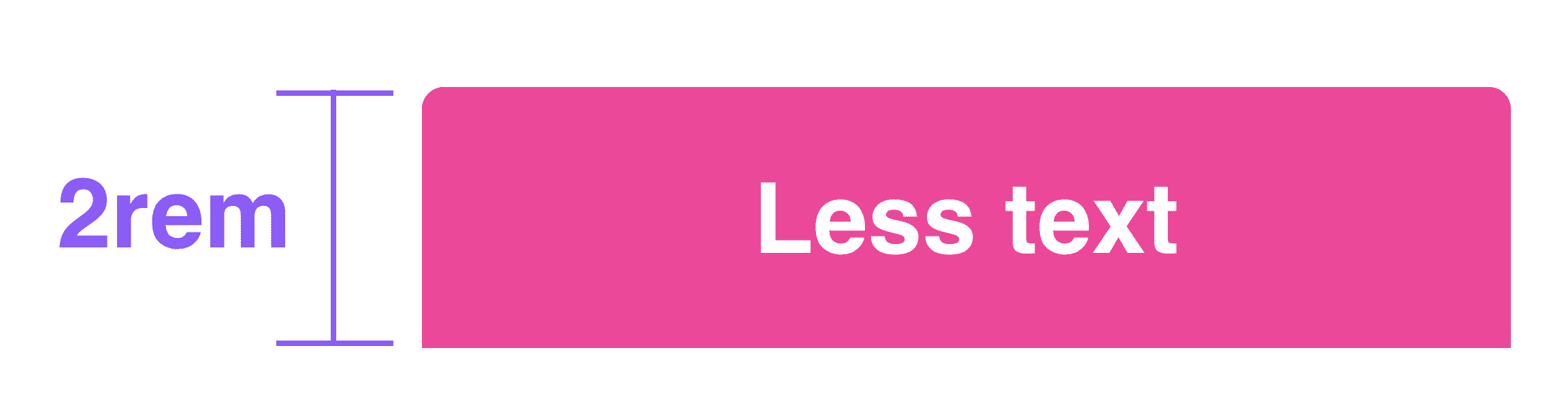
To find a solution to our current issue, we need to find a padding such as the
finnal button's height is 2rem:
Now that we know our problem, we can do the math:
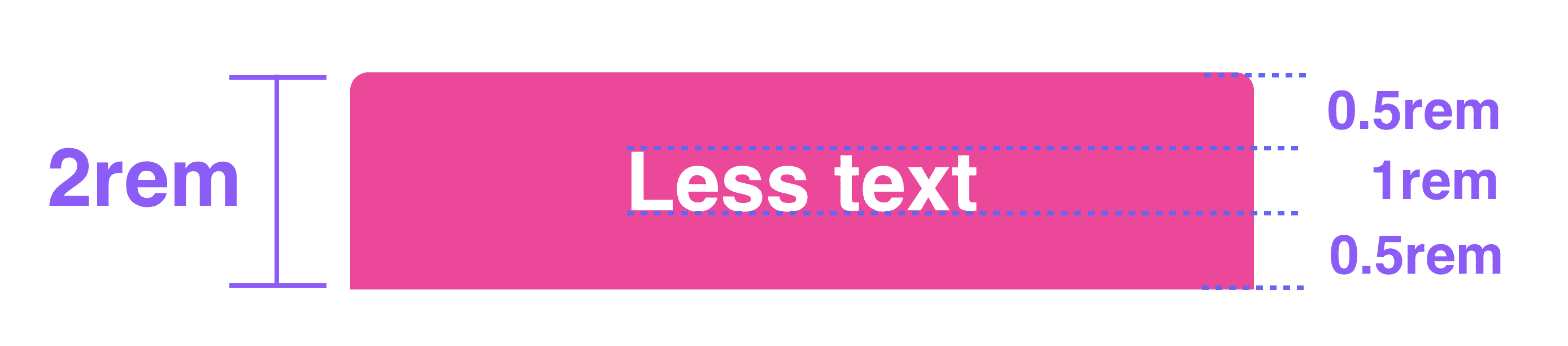
Cool! So we need to use a vertical padding of 0.5rem:
button {
  // ...previous styles
  padding-top: 0.5rem;
  padding-bottom: 0.5rem;
  width: 10rem;
}

<button>I'm just a simple button</button>
Here's how it looks:
Let's test it out with a longer text:
Cool, it worked!
Padding
Let's test our button under different widths to simulate different viewports:
Even though our button looks good and adjust its height automatically to its content, it doesn't look good when it's too narrow:
This is a common issue: padding looks good when there's plenty of space but it doesn't look good when there's not enough of it. To solve this, we could start by using a percentage padding:
button {
  // ...previous styles
  padding-left: 2%;
  padding-right: 2%;
}

<button>I'm just a simple button</button>
As the MDN website specifies, when you use a percentage as a padding, it it "relative to the width of the containing block". This means that the padding, when using a percentage unit, it will be equivalent to the percentage of the width of the button's.
In the example below, when the button's parent is 250px and 500px wide, then a padding of 2% will be equivalent to 5px and 10px respectively:
250px wide
500px wide
In our case, a padding of 1% looks good:
Now our button doesn't loose too many empty space on small screens. If you think that the percentage padding that you choose on mobile doesn't look good on bigger screens, you can always setup a media query with different paddings:
button {
  // ...previous styles
  padding: 1rem 2%;

  @media (max-width: 768px) {
    padding: 1rem 1.5rem;
  }
}

<button>I'm just a simple button</button>
Ellipsis
Sometimes you don't want to span a button across multiple lines, so an alternative is to use ellipsis:
As you can see, the button at the right doesn't span new lines but instead the text that otherwise would overflow, its replaced by three dots ("..."). To accomplish this effect, you can use the following css:
.ellipsis {
  white-space: nowrap;
  overflow: hidden;
  text-overflow: ellipsis;
}
white-space: nowrap tells the browser to not create new lines if there's no
space available to fill all the content in one line. overflow: hidden tells
the browser to don't create an horizontal scrollbar when the content overflows.
text-overflow: ellipsis tells the browser to display the text that overflows
using ellipsis.
Using ellipsis is a good alternative when you don't have control over the size of the button (e.g: dynamic text?). However, if you don't like the three dots that basically hide the rest of the button's content, then dynamically sized buttons( as we saw before) is the way to go.
Icons
Adding icons to your buttons is a bit tricky too. Let's add a simple svg icon from heroicons
If you can't notice it, here's a zoomed version of the previous button:
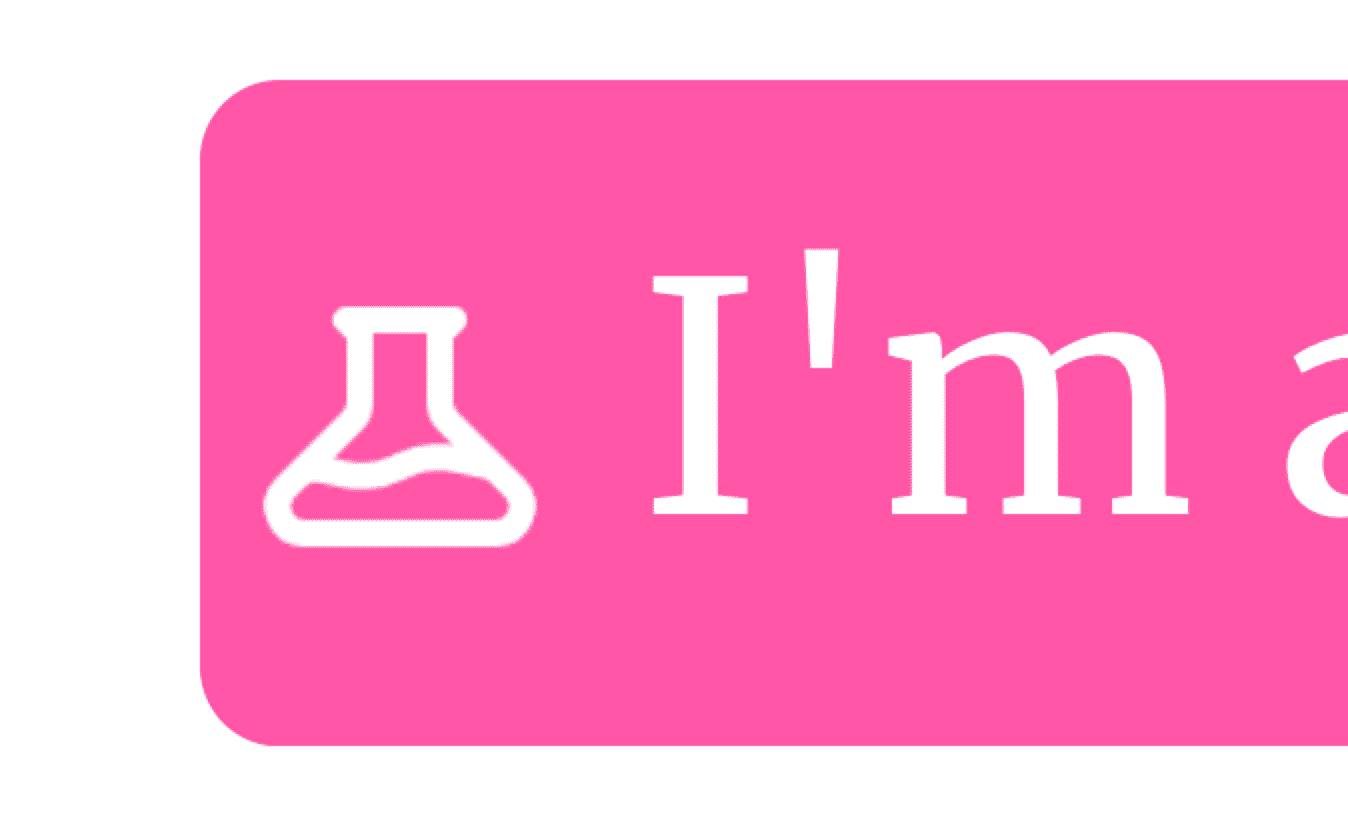
It's not the big deal but more often than not you'll need to make small adjustments to your icons, so let's continue!
A first solution to this is to use flexbox:
button {
  // ...previous styles
  display: flex;
  align-items: center;
}It kind of help but has two downsides:
- It's not completely exactly
- It doesn't work on Safari so we need to find an alternative.
After a perfonal (long) quest on how to reliably align icons with text, I've found that the easiest and reliable way to align icons is the following:
.icon {
  position: relative;
  top: ?;
  left: ?;
}
That's is. You don't need to modify the parent's positioning to make this work. Just apply this style. Let's test it with out button:
.icon {
  position: relative;
  top: -1px;
  left: 0; // We can omit this since it's 0.
}
Here's the result:
How to Test Responsive Buttons
Test the responsiveness of your buttons is a manual step. There's no more reliable way to know that your buttons look good under different sizes than your eyes and the good old window resizing (or the mobile simulator included in browsers nowadays). Remember, responsive design is tricky and manual test is required to ensure a good experience for your users.
However, most of the time is a one-time test. You make something work well and
then apply that solution everywhere. In this case, you can just create a
.button class or a custom component, apply this solution, and apply it
everywhere. On other cases, you'll have several buttons, or less available space
and you need to tweak things on, so it's good that you know that tricks
presented in this article.
Conclusion
In this article we saw how to make buttons to be really responsive: how to make them look good when there's plenty and a lack of space, how to make it play well with icons, and all the small details that differentiate a nice button from a good one.
If you liked this article, you can follow me on Twitter and get my latest updates and random-posts on Twitter.